
Delete Your Account
How to permanently delete your Flock account and data
Flock allows you to delete your account and all associated data directly from within the app. Account deletion is permanent and cannot be undone. If you need assistance, contact us at [email protected].
How to Delete Your Account
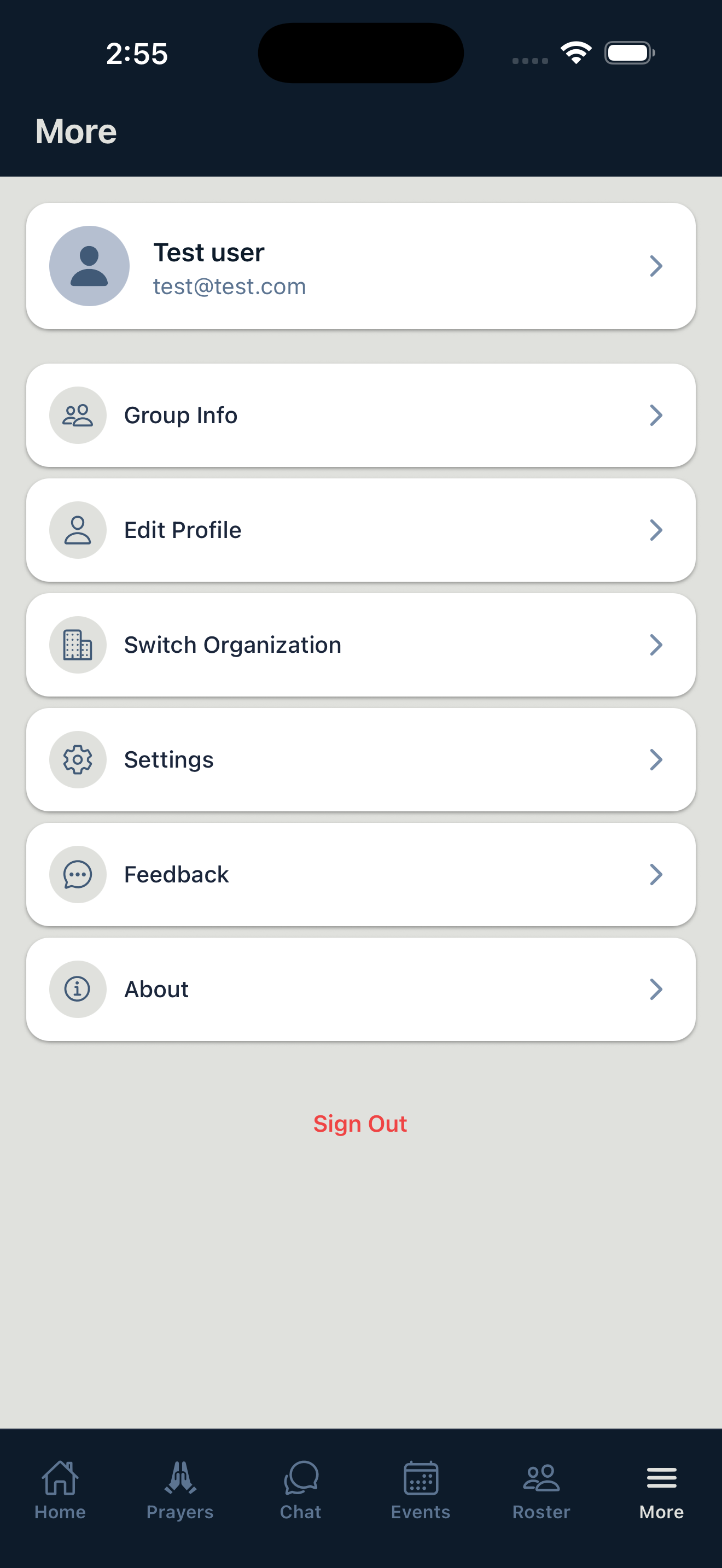
Open the More menu
Open the Flock app and tap the "More" tab at the bottom right of the screen.
Go to Settings
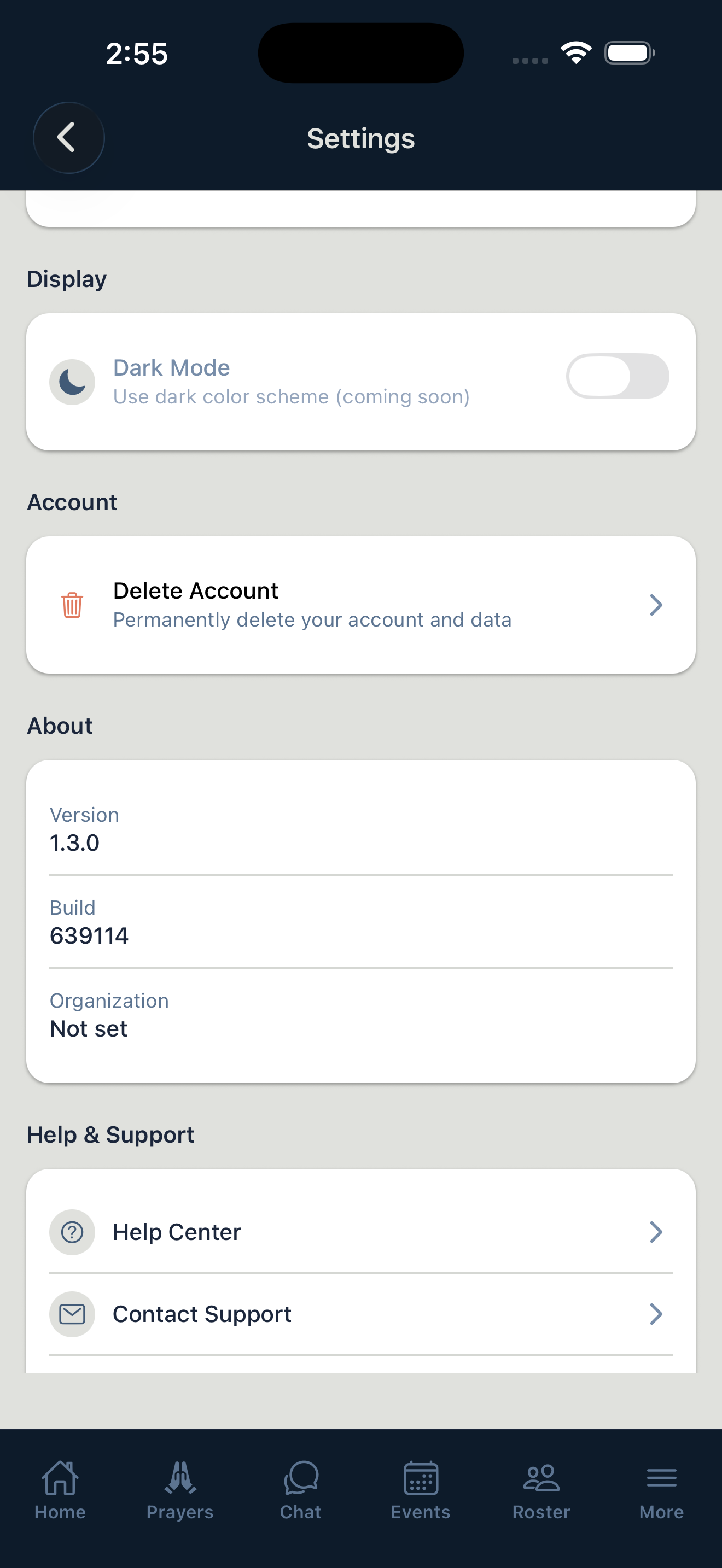
Tap "Settings" from the menu options.
Review what will be deleted
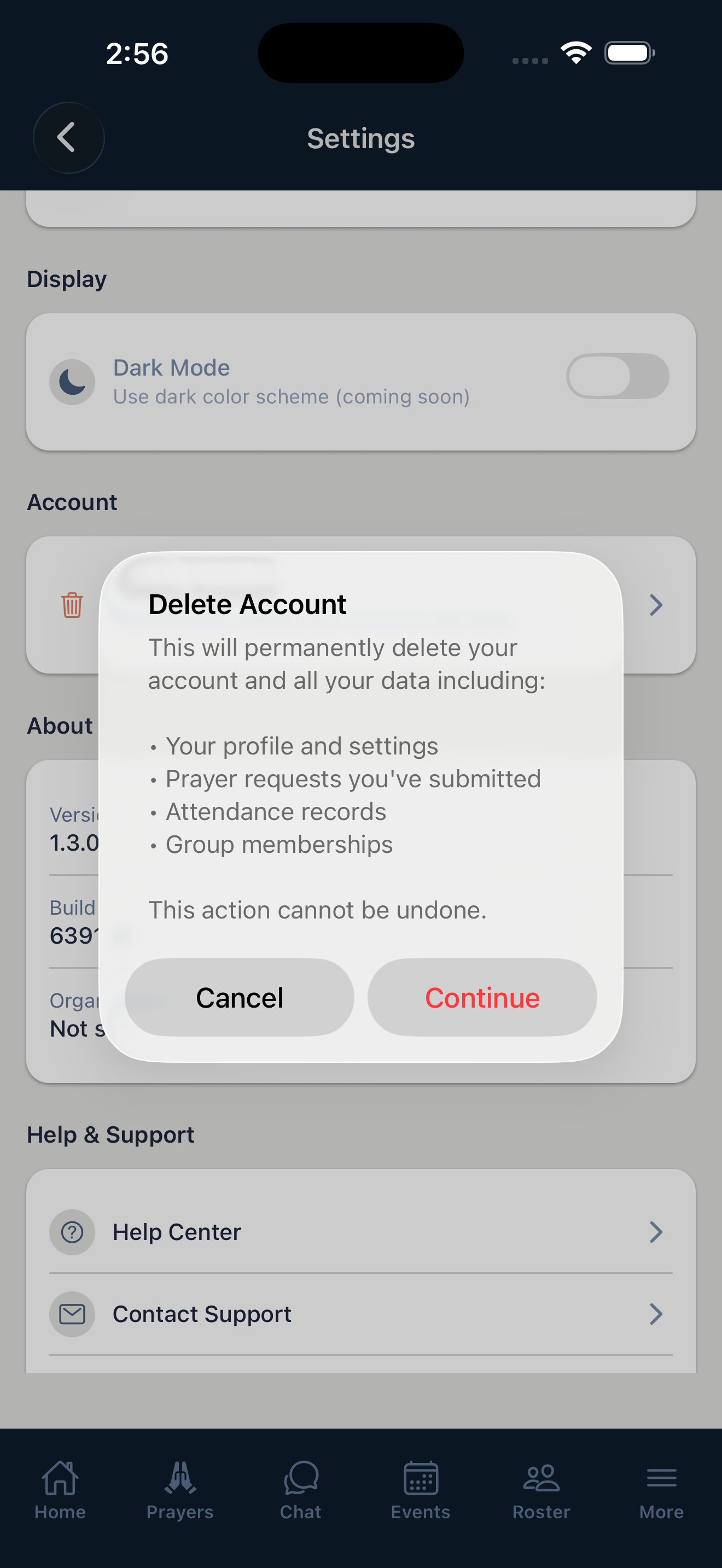
Scroll down to the Account section and tap "Delete Account." A dialog will appear listing all the data that will be permanently deleted. Tap "Continue" to proceed.
Confirm deletion
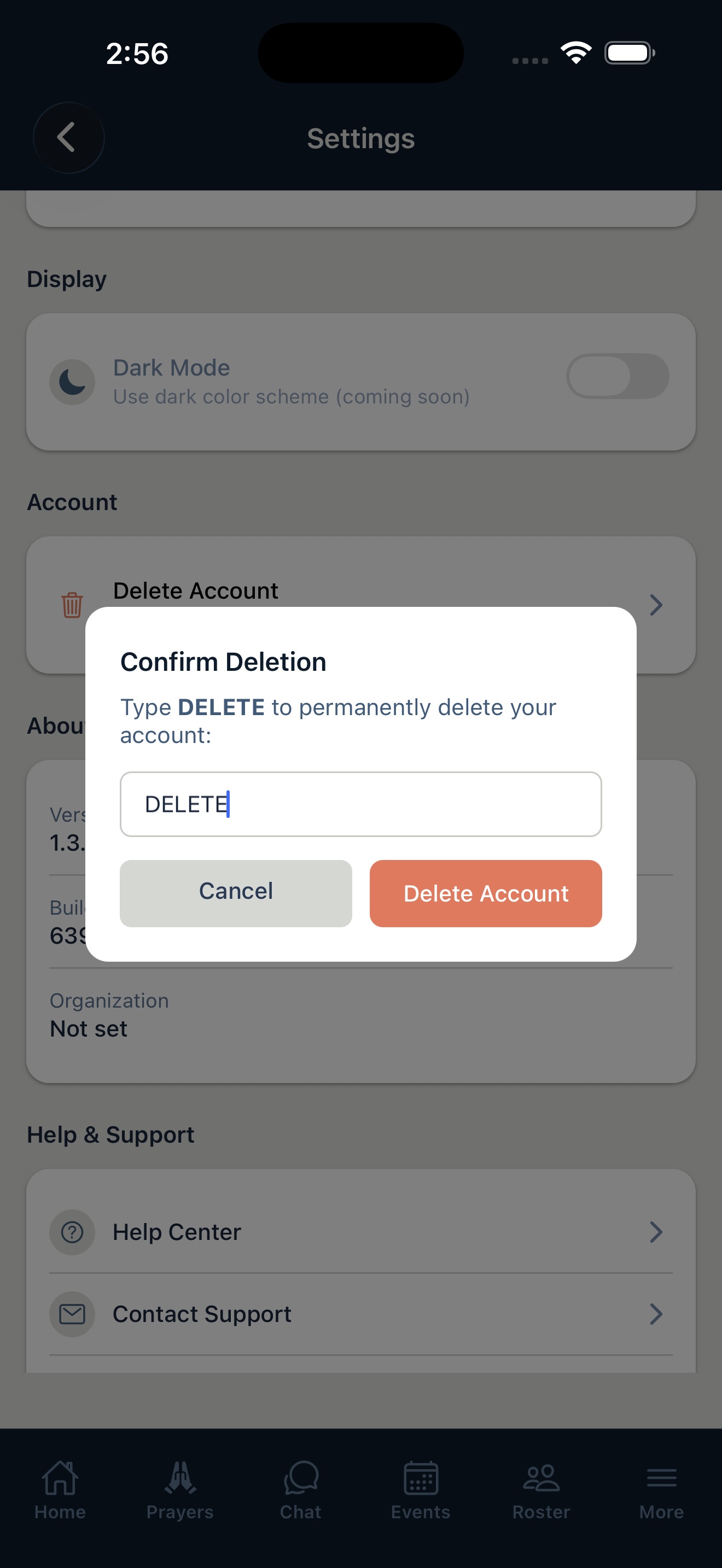
Type DELETE in the confirmation field, then tap the "Delete Account" button. Your account and all associated data will be permanently removed.
What Data Gets Deleted
When you delete your account, the following data is permanently removed:
- Your profile and settings
- Prayer requests you've submitted
- Attendance records
- Group memberships
- Chat messages
- Facial recognition data (if enrolled)
- Your authentication credentials
Data Retention
Account deletion is immediate and permanent. There is no data retention period — all of your data is removed upon deletion. This action cannot be undone.
Need Help?
If you're having trouble deleting your account or have questions about your data, contact our support team at [email protected].